PA System
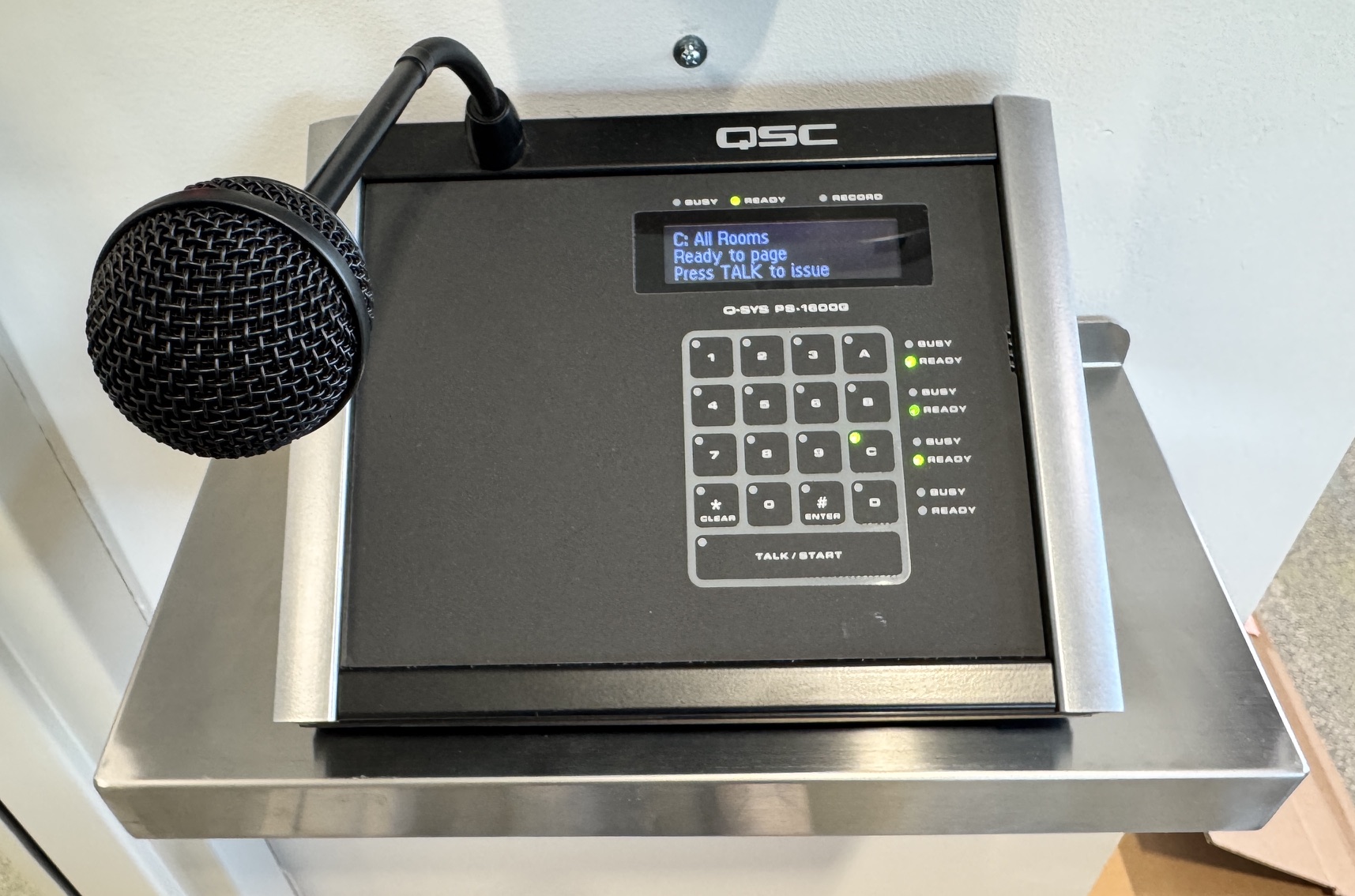
The building is equipped with a PA system that is integrated with our Q-Sys A/V system. The paging control is mounted on the wall behind the front desk. This is a brief overview of this system:
Networked PA System Overview
The facility is equipped with a high-fidelity QSC Q-SYS Networked PA System. Unlike traditional analog systems, this setup uses a dedicated digital network to distribute crystal-clear audio to specific areas of the building with zero signal loss.
The system is managed via a centralized Touchscreen Control Console (UCI), which allows users to route microphones or background music to three primary zones based on the scale of the event.
Understanding the Audio Zones
The system is divided into three logical groups to ensure audio is only heard where it is needed:
- Zone A: Small Rooms (Studios) – Targets the smaller, intimate acoustic spaces designed for individual practice or small group sessions.
- Zone B: Large Rooms (Rehearsal Halls) – Routes audio to the high-volume spaces intended for full ensembles and orchestral rehearsals.
- Zone C: All – A “Global” broadcast mode that engages every loudspeaker in the building simultaneously. This is typically used for general announcements, building-wide events, or emergency pages.
How-To: Operating the PA Console
Using the system is straightforward. Follow these steps to broadcast audio to your desired location:
1. Select Your Destination
On the main console screen, tap the button corresponding to the area you wish to reach (Zone A, B, or C). The button will typically highlight or change color to indicate it is “Active.”
2. Prepare the Audio Source
- For Paging: Use the attached paging microphone.
3. Broadcast
- Press and Hold: If using a “Push-to-Talk” feature, hold the button on the screen or microphone while speaking.
- Check Levels: Use the on-screen volume slider (if available) to adjust the output. The Q-SYS Core automatically manages the internal gain to prevent distortion across the different room sizes.
4. Clear the Selection
Once finished, tap the active Zone button again to “Deselect” it. This ensures that the next user doesn’t accidentally broadcast to the wrong area.