Security Cameras
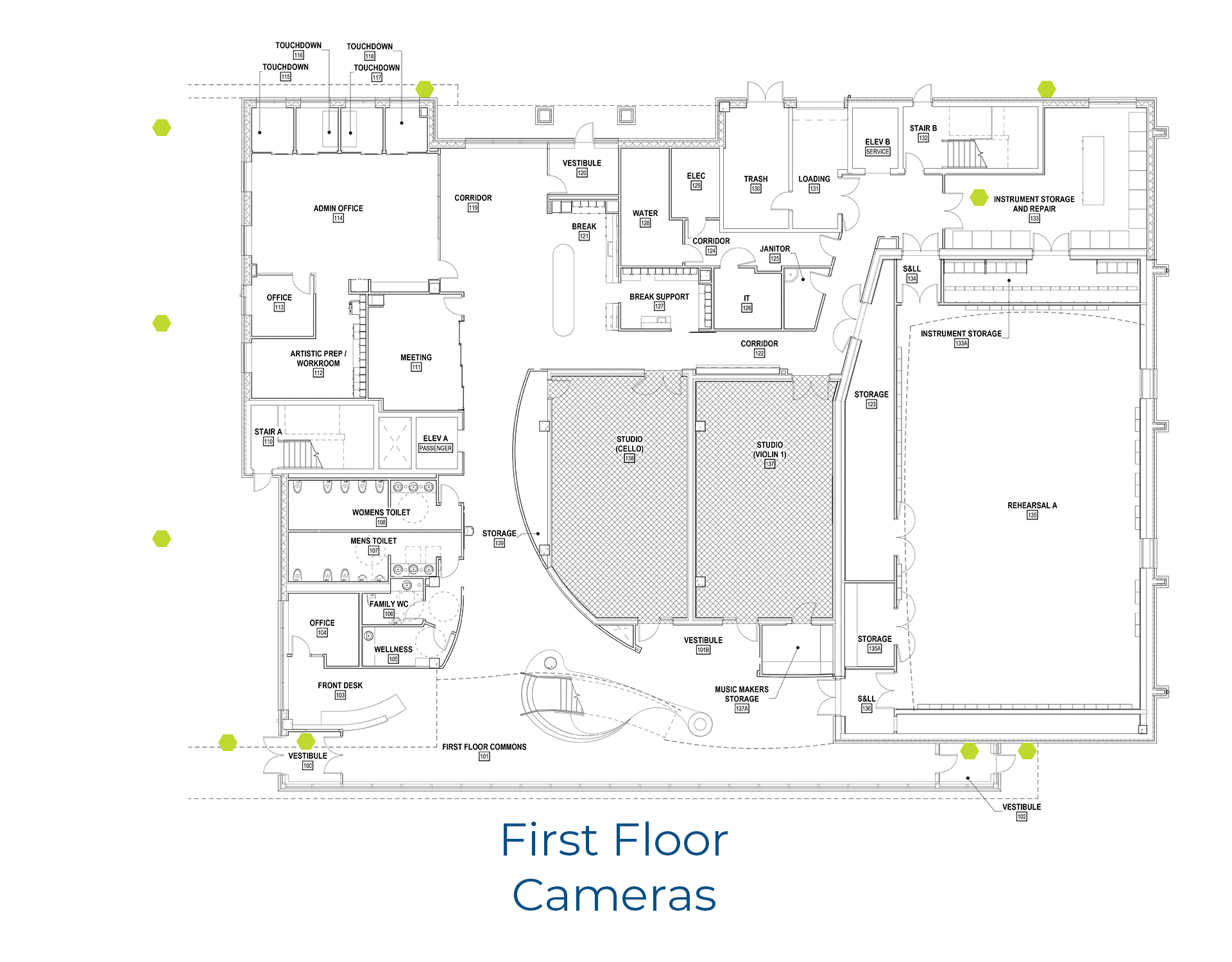
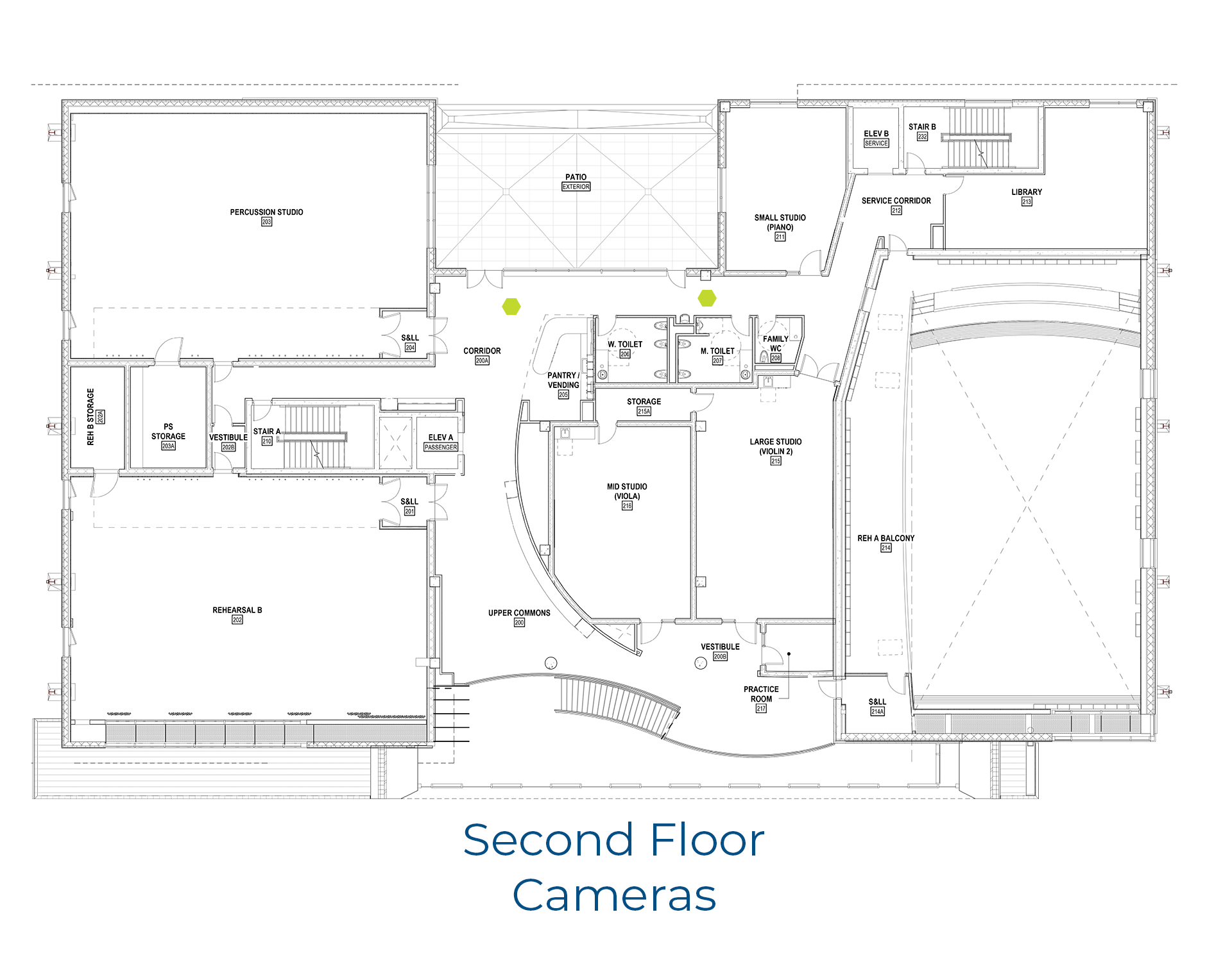
Including the intercoms in the two vestibules on the front of the WCM, there are a total of 12 cameras in the building. Seven of the remaining cameras are located on the exterior of the building, one is inside Room 133, and two are on the second floor near the patio doors.
Video can be observed, and is recorded with a program called exacqVision. This server is located in the IT closet: Room 126. Video can be viewed with the exacqVision client software. There is also a monitor at the front desk that has a decoder showing four separate exterior cameras covering entrance doors.
Once the exacqVision program is open, to view live cameras, click on the monitor icon on the top left of the screen. Typically, the Cameras view should be selected in the menu. To the right of the Monitor icon, there are several choices for screen layout/number of cameras, along with PTZ (Point/Tilt/Zoom) controls, Full Screen mode, Hide/Show Menu, etc. In some views, it will be necessary to drag-and-drop the camera from the left menu into the layout in the main pane.
The Search Page icon is also located on the top left of the screen. To conduct a search, select a camera by checking the box next to the camera name/icon. Multiple cameras can be selected simultaneously. In the boxes below the view pane on the right, enter the search parameters: Start Date/Time and End Date/Time, then click “Search”. A timeline scrubber will appear that has blue lines indicating times of motion or activity. By right-clicking on the timeline, it is possible to set a stop and start point for a video clip. Once the points have been set, right-click on the timeline again and choose “Download and Export Video and Audio” from the menu.